
AI Agents for Home Service Providers: Track Field Time, Prepare Payroll, and Compare Office Performance
Your dispatchers assign jobs, your technicians drive between sites, and your office manager reconciles timesheets at the end of every week. If you run more…
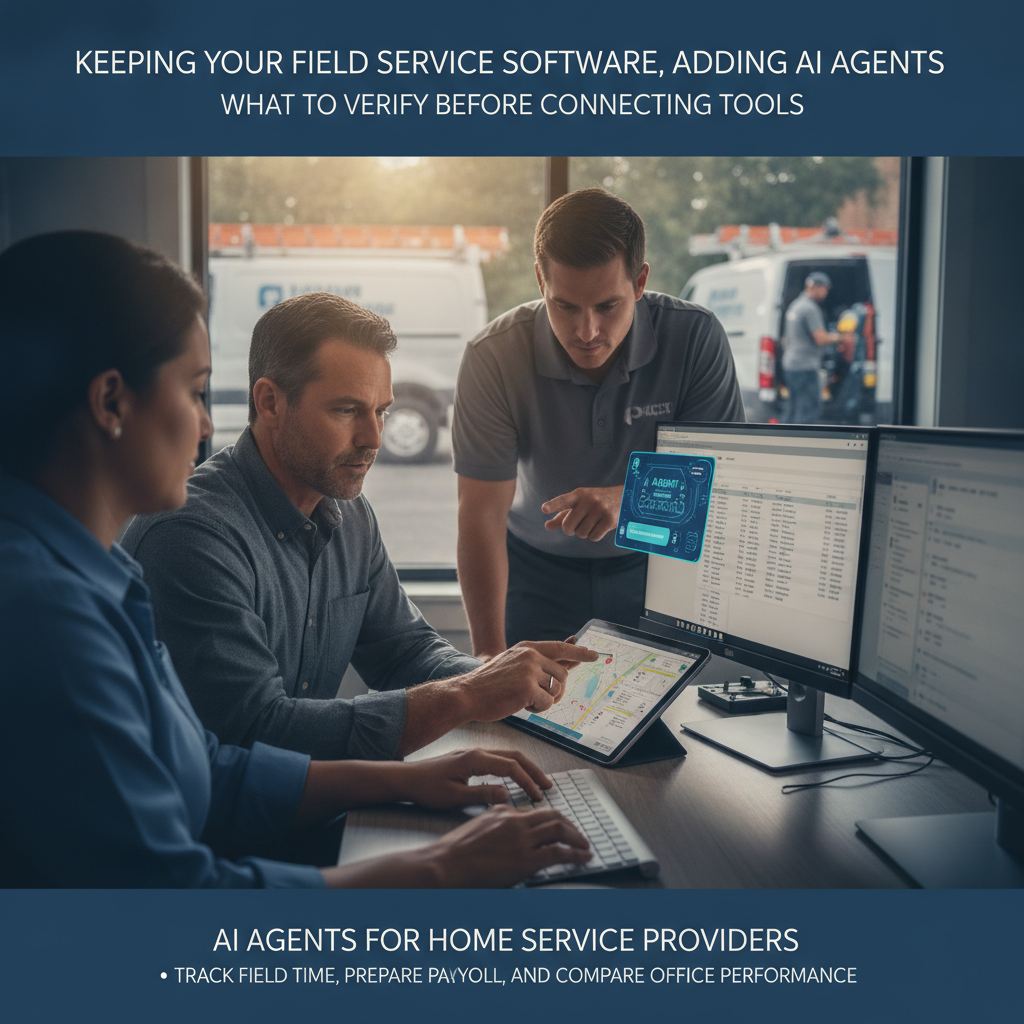
The Bottleneck in Your Business
Your dispatchers assign jobs, your technicians drive between sites, and your office manager reconciles timesheets at the end of every week. If you run more than one office or a crew of eight or more technicians, the manual layer between "tech clocked out" and "payroll is ready" eats hours that your office staff could spend on customer follow-up or estimate review.
The same gap shows up in performance visibility. You want to know which office is converting inquiries into booked jobs, which technician is at 90 percent utilization, and where margin is slipping—but that answer lives across your FSM, your accounting software, and a spreadsheet someone updates on Fridays. By the time the numbers are assembled, the week is over.
You do not need to rip out your field service platform or your QuickBooks file. You need an operating layer that reads the time, the dispatch record, and the financial data your systems already produce, then prepares the payroll-ready hours, the office comparison, and the exception list for a human to approve.
How PLMBR AI Agents Help with This Workflow
PLMBR's Provider Enterprise offering operates across your existing systems rather than replacing them. The product page describes running the business by call, text, and email across customer conversations, scheduling and dispatch, estimates, booking packets, follow-up, finance, and connected systems, with the customer keeping existing systems, accounts, and workflows in place.
For the workforce and finance workflow specifically, the documented capabilities include:
- Technician time and payroll prep. The agent tracks technician time at each site and prepares approved hours—site time, overtime, approvals, and exceptions—for the connected payroll or payment workflow.
- Office performance comparison. A single request returns conversion, utilization, revenue, margin, collections, and cash flow across offices, with office-level detail rolling into one governed company view.
- Invoice and collection follow-up. The agent identifies what is due, follows the approved collection rules, and escalates the exceptions to a person.
- Connected bookkeeping. QuickBooks-connected entries span customers, estimates, invoices, payments, expenses, jobs, and offices.
Dispatch in this workflow. Appointment booking and technician dispatch are distinct steps. Booking confirms the visit window; dispatch matches the actual technician to the confirmed job. PLMBR documents each within its own operating boundary. The dispatch workflow checks trade, skill, availability, urgency, proximity, and office, assigns the technician, and texts the customer an ETA. When a swap or reschedule occurs, the record preserves the reason, the owner of the change, and the full history.
Office rules, approvals, and human takeover sit underneath every step. The agent acts inside your company SOPs, price books, service rules, territories, and approval limits. Permissions are set by person, office, channel, intent, and connected system, with approval thresholds and an audit trail. An authorized operator can take over immediately if a situation falls outside the configured rules.
The Business Inputs and Existing Tools to Discuss During Onboarding
Connection delivery is part of onboarding, scoped to your authorized accounts, system capabilities, security requirements, and operating method. Before a demo, gather:
- Your current field service management or scheduling platform
- Payroll or time-tracking tool (the agent prepares hours for the connected payroll or payment workflow)
- Accounting software (the product page references QuickBooks-connected bookkeeping)
- GPS or telematics for fleet and truck location
- CRM or customer database
- Google Workspace, Microsoft 365, or shared files and spreadsheets
- Supplier purchasing accounts (the page notes F.W. Webb, Home Depot, and Lowe's connections supported by the customer's account and integration method)
For systems without a pre-built connector, PLMBR documents webhooks, APIs, and flat-file exchange as integration methods. Custom buildouts are available for proprietary systems. Connection scope is confirmed during onboarding; you are not expected to confirm universal compatibility in advance.
Workflow at a Glance
| Task | Documented agent capability | Office decision or demo question |
|---|---|---|
| Technician time tracking and payroll prep | Tracks time at each site; prepares site time, overtime, approvals, and exceptions for the connected payroll or payment workflow | Which payroll system receives the approved hours? Who signs off on overtime exceptions? |
| Technician dispatch | Checks trade, skill, availability, urgency, proximity, and office; assigns the technician; texts the customer an ETA | What skill matrix and territory rules should the agent follow? Who approves a dispatch override? |
| Office performance comparison | Returns conversion, utilization, revenue, margin, collections, and cash flow across offices in one answer | Which metrics matter for your monthly review? How often should the agent refresh the comparison? |
| Invoice and collection follow-up | Identifies what is due, follows approved collection rules, escalates exceptions | What is your escalation threshold before a human calls the customer? |
| Schedule change or reassignment | Preserves reason, owner, and history in the operating record | Who can reassign a tech, and does the customer receive an updated ETA? |
| Connected-system action (QuickBooks entry, GPS check) | Operates across connected systems within configured permissions and audit history | Which systems get read-only access first, and which get write access after a review period? |
Scroll to see all columns →
Owner Review, Exceptions, and Human Takeover
Automation in a service office is only as safe as the boundaries you set. PLMBR documents several control layers that apply to every workflow above:
- Role-based permissions. Named owners, dispatchers, estimators, technicians, office administrators, finance, and leadership roles keep work and authority clear. Each person sees the work and authority meant for them.
- Approval thresholds. Sensitive actions—quotes, purchases, changes, payments, outreach, and connected-system actions—route to the right approver based on your company's thresholds.
- Read-only and draft-only modes. Bounded autonomy and least-privilege access define what the agent can see, prepare, and do before a human signs off.
- Audit history. Every consequential step records the request, context, action, approval, connected system, and responsible person or agent.
- Immediate human takeover. Escalation paths and emergency pause controls let an authorized operator step in on any channel at any moment.
For a multi-office operation, office-specific numbers, roles, teams, schedules, and rules determine what the agent does next, while simultaneous conversations stay separated by customer and job.
An Illustrative Job: What to Test in a Demo
The following is a demo evaluation exercise, not a description of a real customer interaction. Use it as a checklist when you sit down with our team.
Scenario: A two-office HVAC operation. Office A has three technicians; Office B has two. It is Friday at 4:30 p.m. A customer in Office A's territory texts: "Furnace blowing cold air, kids are home. Can someone come before 7?"
Customer and office inputs to provide in the demo:
- The text message above, the customer's address, and phone number
- Current assignments for all five technicians across both offices
- Your overtime threshold (e.g., anything past 6:00 p.m. requires owner approval)
- Your standard ETA text template
Questions to ask during the demo:
- How does the agent qualify this as urgent versus routine, and what rule triggers that classification?
- Which technician does the agent assign, and can you see the trade, skill, availability, urgency, proximity, and office factors it weighed?
- What does the customer receive as an ETA update?
- If the assigned tech would go into overtime, does the agent flag it for owner approval before confirming?
- At end of day, how does the agent prepare the payroll-ready hours for all five technicians, including the overtime exception?
- What does the office performance comparison show for Office A versus Office B this month?
- What does the audit trail record after the dispatch, the ETA text, and the overtime approval?
Do not assume the agent will handle every edge case automatically. The point of the demo is to confirm which steps run inside your configured rules and which route to a person.
How to Evaluate This Workflow
Does PLMBR connect to my current FSM and payroll system, or do I need to migrate?
The product page states that existing business systems remain in place and that connection scope is confirmed during onboarding. PLMBR for your business documents connections to existing CRM, field-service management, accounting, payroll, GPS, telematics, and custom systems. Verify in the demo that your specific FSM and payroll platform are covered by a supported connector, webhook, API, or flat-file path.
What permissions do I set before the agent touches dispatch or payroll?
Permissions are configured by person, office, channel, intent, and connected system, with approval thresholds. You can start with read-only or draft-only modes. Ask the demo team to show the permission matrix for a dispatch action and the approval threshold that would route an overtime exception to a human before the hours are marked approved.
How do I know the agent is following my office rules, not a generic playbook?
The agent is taught your company SOPs, price books, service rules, territories, approval limits, and brand voice. In the demo, ask to see how a specific rule—for example, "no dispatch beyond 25 miles without owner approval" or "overtime past 6 p.m. requires the office manager's sign-off"—is configured and how a violation triggers an escalation.
What happens if something goes wrong mid-dispatch or during payroll prep?
Escalation paths, emergency pause controls, and immediate human takeover are documented. Confirm in the demo who can trigger the pause, what the customer sees during the handoff, and how the audit trail records the intervention.
Next Step
If your priority is adding AI-driven time tracking, payroll preparation, office performance comparison, and dispatch on top of the field service software you already run—without a full platform migration—start by evaluating PLMBR. The product walkthrough shows the channel and operating-layer details, and our blog covers additional home service workflow topics.
Book a Provider Enterprise demo and bring your current system list, your dispatch and overtime rules, and the illustrative job above. We will walk through connection scope, permission setup, and the payroll-to-performance workflow with your specific operation in view.